何老师的济亨网
五笔打字通主页
当前位置:首页 » tkinter » 正文
-
上一篇文章,我已经把题库由txt文件转为sqlite数据库db文件,这篇文章就把上上篇文章的答题系统修改一下,把题库由car3.txt改成student.db,关于sqlite数据库操作的基本操作,参见我的文章 tkinter之SQLite操作 题库源文件变了,其它的有关代码也做相应的改变,并不难,我都是用查找更改的方法改了不少地方。 丶丌皛
改进的代码如下:
from tkinter import *
import webbrowser
import sqlite3

def wb98():
    webbrowser.open('http://www.wb98.com',new=1)
def Wheel_y(event):
    a= int(-(event.delta)/60)
    can1.yview('scroll',a,'units')

root=Tk()  # 源码来自wb98.com
root.title('用画布做一个答题系统 wb98.com')
scr1=Scrollbar(root)  # 垂直滚动条
scr1.pack(side=RIGHT,fill=Y)

can1=Canvas(root,bg='lightblue',width=10,height=10) # 画面设置一个浅蓝色,便于你看清各组件的位置
can1.pack(side=LEFT,expand=True,fill=BOTH) # 画布定位

# result[i-1][0]:题目  result[i-1][1]:选项1  result[i-1][2]:选项2  result[i-1][3]:选项3  result[i-1][4]:选项4
# result[i-1][5]:答案  result[i-1][6]:图片名

conn=sqlite3.connect('student.db') #创建或打开数据库

# 创建游标对象
cur=conn.cursor() # 创建游标对象

# SQL语句
cur.execute('select * from text2sqlite where id between ? and ?',(1,10)) # 查询id值范围为1-10之间的记录
result=cur.fetchmany(10) # 获取10条查询记录
# print('id=1至10的记录:',result)
# print('-----')

la=dict() # 题目字典
img = dict()  # 生成一个空字典,用于下面循环地创建变量
# 以下设各变量为字典,便于循环时生成各组件插入Text组件
option1 = dict()  # 生成答案选项1组件字典
option2 = dict()  # 生成答案选项2字典
option3 = dict()  # 生成答案选项3字典
option4 = dict()  # 生成答案选项4字典
# 以下设各变量为字典,便于循环时生成各组件插入Text组件
var_ra = dict()
var_ch1 = dict()
var_ch2 = dict()
var_ch3 = dict()
var_ch4 = dict()
str_daan = ''  # 答案字符串初始化

x,y=10,10 # 坐标初始化
ff1=15 # 字体大小
ff2=10 # 字体大小
font1=('黑体',-ff1) # 字体大小前加- 表示是像素大小
font2=('宋体',-ff2)
hh=10 # 上下间距
bmp_h=200 # 图片的高度

# 以下是循环出题的代码 ------------------
for i in range(1, 11):
    id = str(result[i-1][0])+":"  # 题目序号 来自wb98.com何老师的济亨网

    la[i]=Label(can1,text=id+result[i-1][1],justify=LEFT, font=font1)
    can1.create_window(x,y,window=la[i],anchor=NW)
    la[i].bind("<MouseWheel>", Wheel_y) # 为组件绑定鼠标滚动事件
    y=y+ff1+hh # 下一组件的起始位置为当前位置+字体高+间隔

    if result[i-1][7] == '':
        img[i] = PhotoImage()  # 没有相关图片
    else:
        img[i] = PhotoImage(file='.\\image\\'+result[i-1][7])  # 图片是在安装目录下的image文件夹里
        can1.create_image(x,y,image=img[i],anchor=NW)
        y=y+bmp_h+hh

    str_daan = str_daan + result[i-1][6]+','  # 把答案记下来,交卷用于核对
    if len(result[i-1][6]) == 1:  # 单选题

        var_ra[i] = IntVar(value=0)

        option1[i] = Radiobutton(can1, text='A. '+result[i-1][2], bg='white',
                                 activebackground='white', variable=var_ra[i], value=1)
        can1.create_window(x,y,window=option1[i],anchor=NW)
        option1[i].bind("<MouseWheel>", Wheel_y) # 为组件绑定鼠标滚动事件
        y=y+ff2+4+hh # 下一个组件起始坐标:当前位置+字体大小+4个像素间距

        option2[i] = Radiobutton(can1, text='B. '+result[i-1][3], bg='white',
                                 activebackground='white', variable=var_ra[i], value=2)
        can1.create_window(x,y,window=option2[i],anchor=NW)
        option2[i].bind("<MouseWheel>", Wheel_y) # 为组件绑定鼠标滚动事件
        y=y+ff2+4+hh # 下一个组件起始坐标:当前位置+字体大小+4个像素间距

        option3[i] = Radiobutton(can1, text='C. '+result[i-1][4], bg='white',
                                 activebackground='white', variable=var_ra[i], value=3)
        can1.create_window(x,y,window=option3[i],anchor=NW)
        option3[i].bind("<MouseWheel>", Wheel_y) # 为组件绑定鼠标滚动事件
        y=y+ff2+4+hh # 下一个组件起始坐标:当前位置+字体大小+4个像素间距

        option4[i] = Radiobutton(can1, text='D. '+result[i-1][5], bg='white',
                                 activebackground='white', variable=var_ra[i], value=4)
        can1.create_window(x,y,window=option4[i],anchor=NW)
        option4[i].bind("<MouseWheel>", Wheel_y) # 为组件绑定鼠标滚动事件
        y=y+ff2+4+hh # 下一个组件起始坐标:当前位置+字体大小+4个像素间距
        y=y+10
    else:
        var_ch1[i] = BooleanVar(value=False)
        var_ch2[i] = BooleanVar(value=False)
        var_ch3[i] = BooleanVar(value=False)
        var_ch4[i] = BooleanVar(value=False)

        option1[i] = Checkbutton(
            can1, text='A. '+result[i-1][2], bg='white', activebackground='white', variable=var_ch1[i])
        can1.create_window(x,y,window=option1[i],anchor=NW)
        option1[i].bind("<MouseWheel>", Wheel_y) # 为组件绑定鼠标滚动事件
        y=y+ff2+4+hh # 下一个组件起始坐标:当前位置+字体大小+4个像素间距

        option2[i] = Checkbutton(
            can1, text='B. '+result[i-1][3], bg='white', activebackground='white', variable=var_ch2[i])
        can1.create_window(x,y,window=option2[i],anchor=NW)
        option2[i].bind("<MouseWheel>", Wheel_y) # 为组件绑定鼠标滚动事件
        y=y+ff2+4+hh # 下一个组件起始坐标:当前位置+字体大小+4个像素间距

        option3[i] = Checkbutton(
            can1, text='C. '+result[i-1][4], bg='white', activebackground='white', variable=var_ch3[i])
        can1.create_window(x,y,window=option3[i],anchor=NW)
        option3[i].bind("<MouseWheel>", Wheel_y) # 为组件绑定鼠标滚动事件
        y=y+ff2+4+hh # 下一个组件起始坐标:当前位置+字体大小+4个像素间距

        option4[i] = Checkbutton(
            can1, text='D. '+result[i-1][5], bg='white', activebackground='white', variable=var_ch4[i])
        can1.create_window(x,y,window=option4[i],anchor=NW)
        option4[i].bind("<MouseWheel>", Wheel_y) # 为组件绑定鼠标滚动事件
        y=y+ff2+4+hh # 下一个组件起始坐标:当前位置+字体大小+4个像素间距
        y=y+10

# 以上是循环出题的代码--------------   wb98.com

def dafei():
    daan = str_daan.split(',')  # 把答案字符串分解

    for i in range(1, 11):  # 单选题
        if len(daan[i-1]) == 1:  # 单选题
            if daan[i-1] == str(var_ra[i].get()):
                print('第'+str(i)+"题回答正确")
            else:
                print('第'+str(i)+"题回答错误")
                print("    正确答案:" + daan[i-1])
                print("    你的答案:" + str(var_ra[i].get()))
        else:  # 多选题
            duo = ''
            if var_ch1[i].get() == True:
                duo = '1'
            if var_ch2[i].get() == True:
                duo = duo+'2'
            if var_ch3[i].get() == True:
                duo = duo+'3'
            if var_ch4[i].get() == True:
                duo = duo+'4'

            if daan[i-1] == duo:
                print('第'+str(i)+"题回答正确")
            else:
                print('第'+str(i)+"题回答错误")
                print("    正确答案:" + daan[i-1])
                print("    你的答案:" + duo)

y=y+hh*2 # 再加2个间隔,插入按钮
but1 = Button(can1, text="    立 即 交 卷    ", command=dafei)  # 交卷打分
can1.create_window(x,y,window=but1,anchor=NW)

but1 = Button(can1, text="    访 问 官 网    ", command=wb98)  # 交卷打分
can1.create_window(x+200,y,window=but1,anchor=NW)

can1.config(yscrollcommand = scr1.set) # 绑定垂直滚动条
scr1.config(command = can1.yview)

can1.config(scrollregion=(0,0,650,y+100)) # 保证滚动范围正好是图片的宽高

can1.bind("<MouseWheel>", Wheel_y) # 为画布绑定鼠标滚动事件

root.geometry('700x650+588+224')
# root.wm_deiconify()  # 让窗体显现

root.mainloop()
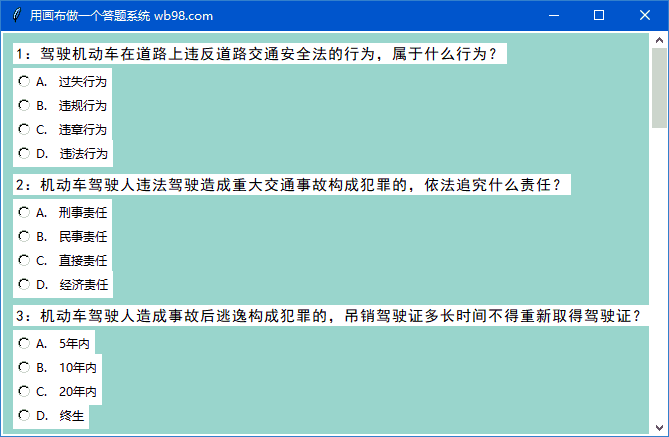
运行结果
此文章来自:wb98.com 网站还有相关的系列课程文章,感兴趣的可以前往。
打赏 支付宝打赏
支付宝打赏
 微信打赏
微信打赏
来源:济亨网
本文链接:https://wb98.com/post/348.html
-
 湘公网安备 43011102000514号